What are your students actually seeing inside their VR headsets? With the new VIL Screencasting, teachers can monitor all headsets simultaneously — directl
How do you mirror the view from a VR headset onto another screen — and how does a teacher keep track of multiple headsets at once in the classroom? With the new VIL Screencasting, both become significantly easier.
Good to be back!
Things have been quiet on our blog for a while. That's about to change.
Because while there wasn't much to read here, quite a lot has been happening at VIL: new projects, new content, new partnerships — and a whole lot of development on our platform.
Going forward, we want to take you along more regularly: new features, classroom experiences, best practices, and behind-the-scenes insights from our projects.
Thanks for your patience — and welcome back.
Let's dive straight in with a feature that sounds technical but can make a real difference in the classroom: VR Screencasting.
What Are My Students Actually Seeing Right Now?
Anyone who teaches with tablets or laptops knows the feeling: a quick glance at the screen and you instantly know whether everyone is where they should be.
With Virtual Reality, it's different.
Students put on their VR headsets and immerse themselves in a virtual learning world. The teacher is left with a very practical question:
What's actually happening inside each of those headsets?
Is the right content running? Does someone need help? And how can the experience be shared and guided together in the classroom?
That's exactly where VR Screencasting comes in.
Screencasting mirrors the live view from inside a VR headset to a second screen. This means a teacher can follow along on a PC or tablet, seeing exactly what the student wearing the headset sees.
But mirroring a single headset doesn't solve the challenge of a full classroom.
What happens when you're dealing with eight, ten, or even more devices at once?
VIL Screencasting: Not Just Mirroring. Teaching.
That's precisely the challenge VIL set out to solve.
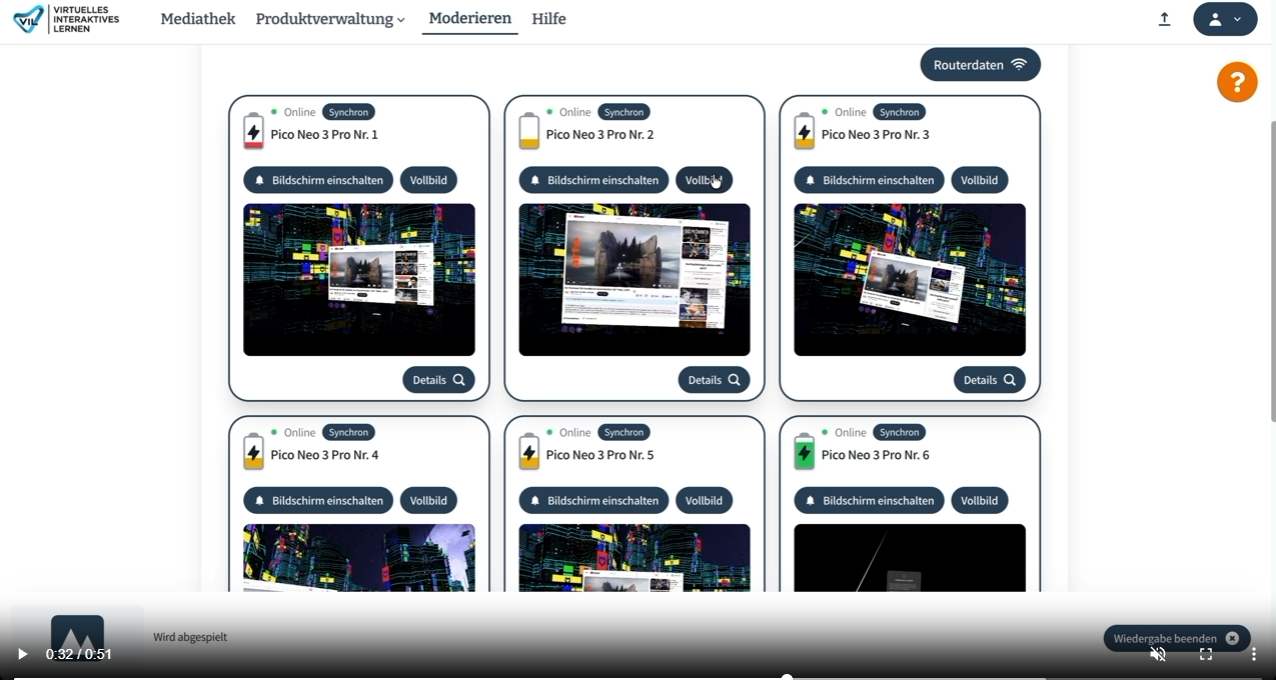
Screencasting is built directly into the central VIL Moderation interface. The teacher opens "Moderate," selects the desired device set or VR case — and gets a live overview of all connected VR headsets.
What makes it special:
The live feeds of multiple VR headsets can be displayed simultaneously.
Instead of walking from headset to headset, the teacher sees everything centrally at a glance. If a particular perspective deserves closer attention or should be shared with the class, the corresponding live feed can be opened in fullscreen with a single click.
VIDEO: Screencasting – How To
This turns a simple screen mirror into a full classroom moderation tool:
Select content → launch on VR headsets → monitor devices → view live feeds → zoom into individual perspectives.
Students explore independently. The teacher stays in control.
Mirror VR Headsets to iPad, PC, or Mac
School IT environments are diverse. A classroom solution should work as seamlessly as possible with existing infrastructure.
VIL Screencasting supports current browsers including Safari, Chrome, Brave, and Firefox, and is designed for PCs and tablets running up-to-date operating systems.
This means moderation can take place on a Windows PC, Mac, Android tablet, or iPad.
iPad and Safari support in particular matters for schools: existing devices can be used without needing additional hardware or dedicated apps just for screen mirroring.
All connections are established exclusively over a secure HTTPS connection.
Not All Screencasting Is the Same
Other VR systems also offer the ability to mirror a headset's display.
But for the classroom, the key question isn't:
"Can the headset broadcast its view?"
It's:
"How easily can a teacher use this to guide an entire class?"
What VIL Screencasting can do — and others often can't:
✓ Mirror the live view from a VR headset
✓ Monitor multiple VR headsets simultaneously
✓ Central moderation interface — everything in one place
✓ Manage content and devices centrally
✓ Works on iPad and Safari
✓ Open any individual perspective in fullscreen
✓ Built specifically for multi-device classroom scenarios
Classic single-device solutions typically only offer the first point.
An Example: Exploring Pompeii as a Class
A class explores Pompeii and Mount Vesuvius through an immersive 360° video.
The teacher launches the content via VIL on all connected VR headsets. As students immerse themselves in the virtual environment, the teacher watches the live feeds of individual headsets in the moderation view.
Someone not yet in the right content? Visible immediately.
An interesting perspective worth sharing with the class? Open it in fullscreen.
What starts as many individual VR experiences becomes a shared, teacher-guided lesson.
How VIL Screencasting Works
The workflow is intentionally simple:
1. Open "Moderate"
2. Select the VR case or device set
3. Choose and launch a learning activity
4. Switch to the "VR Headsets" overview
5. Follow the live feeds from each headset
6. Open any individual perspective in fullscreen as needed
Our short how-to video walks through the entire workflow directly inside the VIL platform.
VIDEO: Screencasting – How To
Technology Should Make Teaching Easier
Virtual Reality can make learning content experiential in ways that traditional media simply can't match. But for it to truly take hold in the classroom, the technology has to do more than impress — it has to work reliably, stay manageable, and genuinely support teachers.
That's why we keep building VIL forward.
Our new Screencasting is one more step on that path:
Students immerse themselves.
Teachers keep the overview.
And Virtual Reality becomes shared learning.
Want to experience the new Screencasting for yourself?
Watch our how-to video or discover VIL in a personal product demo.
And because we promised at the start: this won't be the last post for a long time.
We have a lot to share. Great to have you back.


You can also reach us by phone.
Customer Happiness:

Experience the virtual learning worlds firsthand during a live presentation at the VIL office.
Visits are welcome by prior appointment.
Interested in more information or a personal conversation? Simply fill out our contact form, and we’ll respond to your request promptly and effectively.

